
The tutorial below covers how to install the free version of Adobe Acrobat Reader for use on computers and laptops. For mobiles and tablets, you’ll want to download from your device’s app store instead.
- Go to https://get.adobe.com/reader/
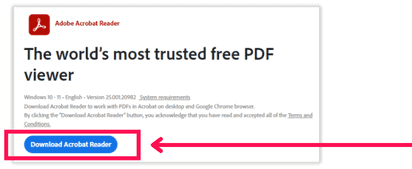
- Click Download Acrobat Reader
- Find and double-left-click the .EXE file that was downloaded. (This will usually be your downloads folder, or you can find it by checking your browser’s download history.)
- Follow the installation instructions on screen. (This step may take a while depending on your device/connection.)
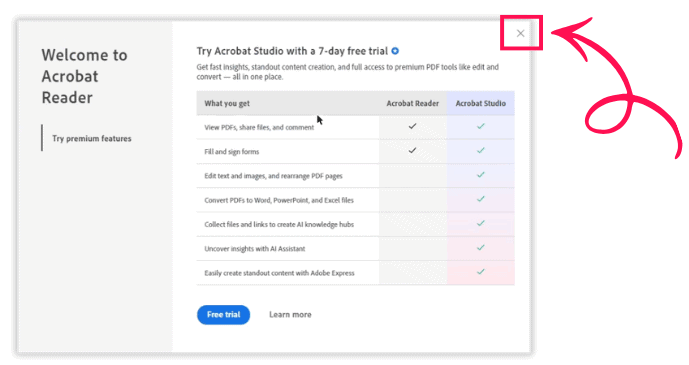
- If you are prompted to upgrade to Adobe Acrobat Pro or a paid account, this is not required at all. Just click the X usually located in the top-right corner of the pop-up. Also, clicking anywhere outside the pop-up box is enough to dismiss it. You usually won’t be prompted again after that.
- Now that Adobe Acrobat Reader is installed, you can simply double-left-click any PDF file to open it in the app.
- From here, you can:
- Go to the top-left menu and click File > Print to set your print settings and send to print
- Or fill in any form fields if these are included