
This tutorial shows how to print only certain pages from PDF files, such as printables, as well as how to print multiple copies.
- Make sure to install Adobe Acrobat Reader first, using these instructions for computers and laptops.
- Once you have Adobe Acrobat Reader installed, you should be able to double-left-click any PDF file to open it in the app.
- From there, in the top left corner, should be a menu bar, click on File > Print.
- Select your printer from the dropdown list at the top.
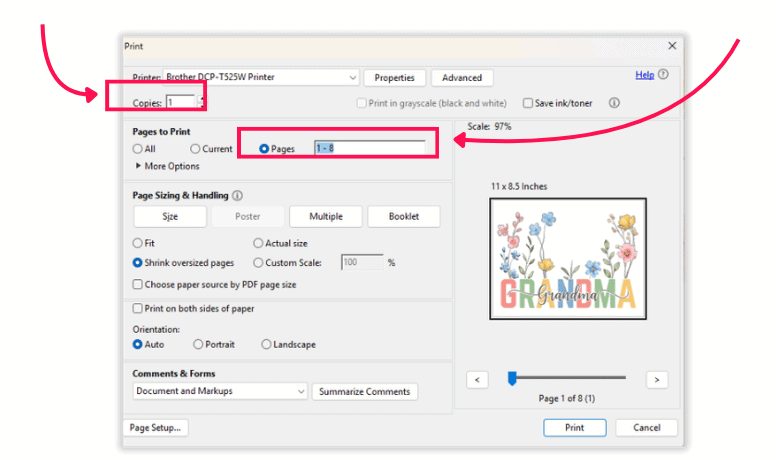
- There should be a section to select ‘Pages to Print’. You can click ‘All’ to print all pages, or if you click ‘Pages’, you can then type in the box next to it what exact pages you want to print. For example, you can type:
- ‘2,8,15’ to print pages 2, 8, and 15
- Or type ‘2-15’ to print all pages from page 2 to 15
- You can change the number next to ‘Copies‘ to print the selected pages multiple times.
- Your settings might look like this, for example:
- You can then click ‘Print’ to send the file to the printer.